
Add your own words and import lists
In My Words, your vocabulary lives in topic folders. Learn more about creating topics and subcategories here.
There are 4 ways to add vocabulary to your folders.
1. Using the dictionary
- On the Dictionary screen, start typing a word in your native language or the foreign language. If needed, swap the flags: left is the language you translate from, right is the language you translate into.
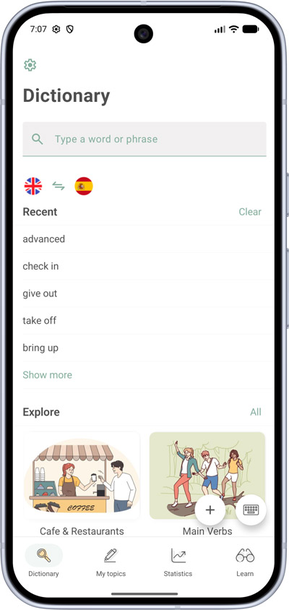
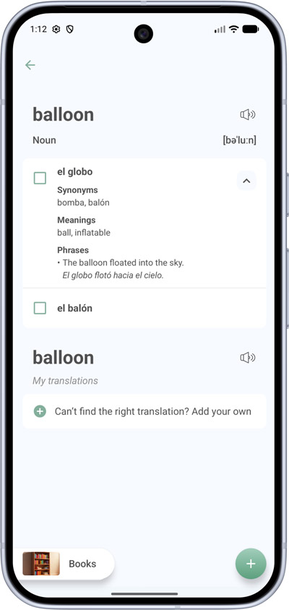
- Tap the translation you want, or add your own (for example, hot air balloon).
- Select or create the topic folder you need (the Books button in the screenshot) and tap + at the bottom of the screen — the word will be saved.
2. From a text or book
- Upload a text, book, or textbook.
- While reading, select an unfamiliar word and tap Find or Translate in the context menu, depending on your app version — the dictionary will open.
- Choose a translation and tap + to add the word to your topic folder.
3. Import a CSV file
This method lets you upload words as a full list, for example from an Excel spreadsheet. Full instructions are in Import a CSV file.
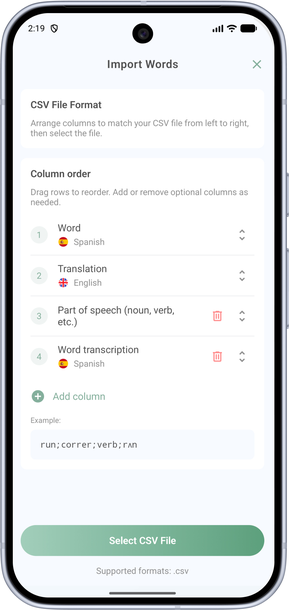
- On the import screen, the word and translation columns are required; you can also add part of speech, transcription, examples, and phrase columns.
- Arrange the columns in the same order as in your file.
4. From a ready-made collection
- On the Dictionary screen, choose a ready-made word collection.
- Tap the image, then Add content to add everything, or select only the words you need.