Sync across devices
My Words offers two ways to sync your dictionary and progress across devices.
A My Words account works on all platforms (iOS and Android), but only with premium access. iCloud is free and only works between Apple devices.
On two Apple devices, do not mix methods: both should use iCloud, or both should use a My Words account.
With a My Words account
Account sync works across all devices and platforms. Premium access is required. If the subscription ends, sync pauses until you renew.
- Create an account if you do not have one yet.
- Sign in on all your devices.
- Get premium if you do not have it yet.
On iPhone or iPad, also choose the sync type:
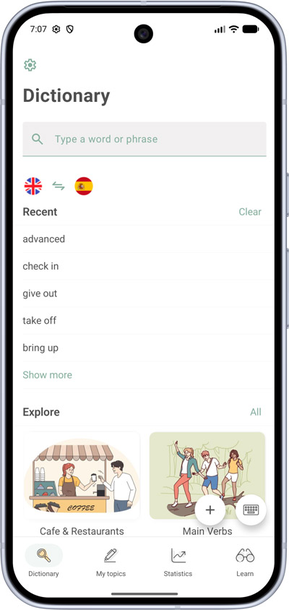
- On the Dictionary tab, tap the gear icon in the top left.
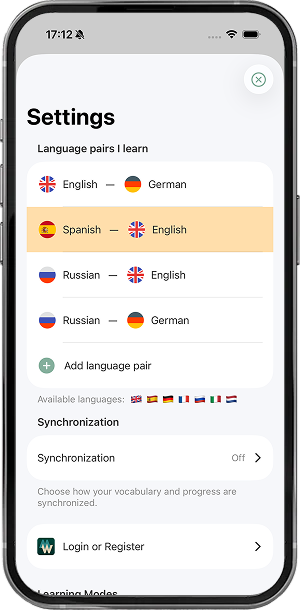
- In the Sync section, open Sync.
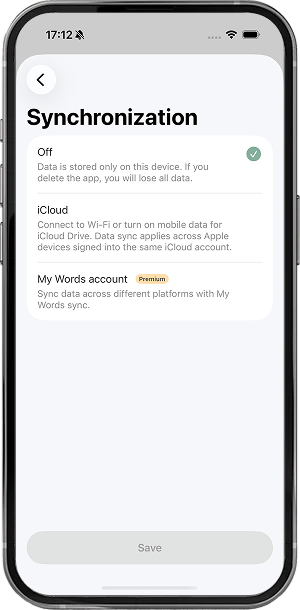
- Choose My Words account and tap Save. Do this on each Apple device.
On Android there is no separate sync-type setting: after you sign in, your dictionary, topics, and statistics sync automatically.
With iCloud (iOS only)
Free iCloud sync works between Apple devices that share the same iCloud account.
- On the Dictionary tab, tap the gear icon in the top left.
- In the Sync section, open Sync.
- Choose iCloud and tap Save. Repeat on both devices.
- Make sure all devices are signed into the same iCloud account:
- On iPhone or iPad: open device Settings — your Apple ID appears at the top of the screen.
- On Mac: open System Settings (on some macOS versions — System Preferences) → Apple ID.
- Check that iCloud has enough free space for sync.