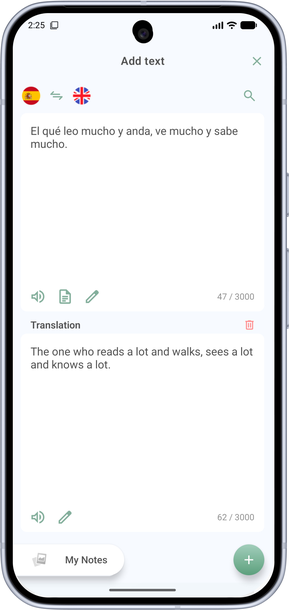

How to add and edit text
My Words makes it easy to work with short texts: edit them, translate both ways, check grammar, break down difficult parts, and save words for study.
-
Add a text:
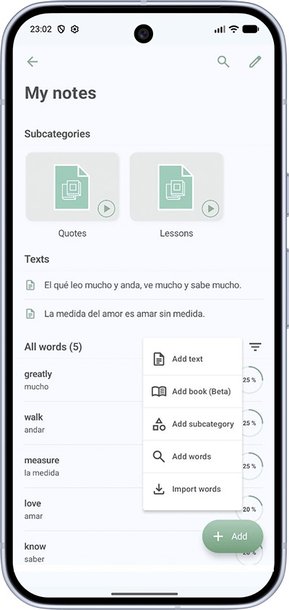
- On the Dictionary screen, tap + and choose Add text.
- In a topic folder, tap Add and choose Add text.
- In a book, select a paragraph and tap Add text.
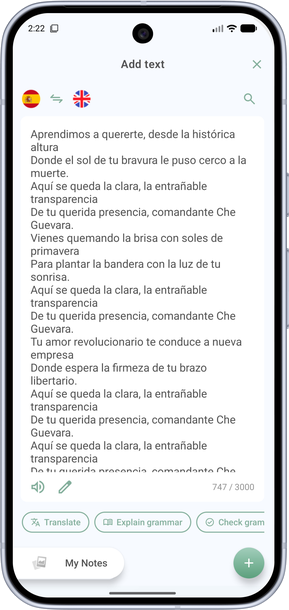
On the screen that opens, you can type the text, paste it from the clipboard, or generate text automatically from your words and topics.
- Next you can edit the text, check grammar and fix errors automatically, and get grammar explanations. Use the actions under the text. Select a phrase or paragraph to add it for practice or explain grammar for only that part.
- Translate texts automatically or by hand. To hear the text spoken, tap the speaker icon. To edit — tap the pencil icon.
- Tap any word to translate it and save it to a topic folder for memorization.